
Virtual displays for visual agents · macOS
Give your agent a window that stays lit.
yomado creates virtual displays for Codex and other visual agents, so they can operate desktop apps through screenshots, mouse and keyboard — no app-specific MCP required.
Move only the agent’s windows there. Yours stay on your screen.
Experimental build: ad hoc signed, not notarized, Apple Silicon only. Details
Why it exists
Visual agents still need a screen.
Agents like Codex can work the way you do: read a screenshot, find the control, then click and type. That lets them use Blender, Marvelous Designer and other desktop apps through their own interface — useful when there’s no suitable app-specific MCP, or when the work happens in a viewport, a menu or a dialog.
But an app only draws its interface onto a display, and a screenshot needs something to capture. Keeping a physical monitor lit just so a background agent can see is a poor trade. yomado gives the agent’s windows a display of their own, in software — no dummy plug, no paid display utility.
- Your agent
- Looks at screenshots, decides, moves the pointer and types — with the tools you already use.
- yomado
- Provides the display: named virtual screens for the windows the agent needs.
- You
- Keep your own windows on your physical screen.
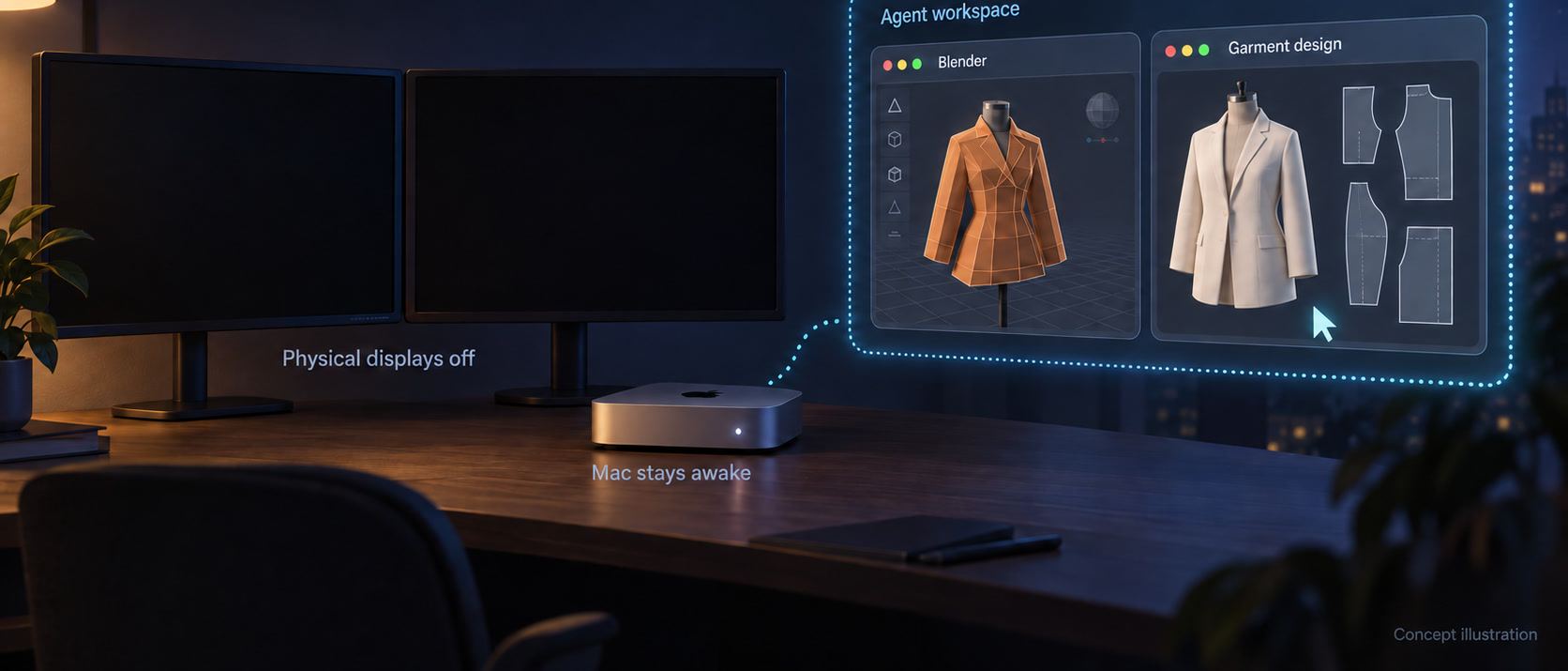
yomado is not an agent, not a remote desktop and not a replacement for MCP. It only supplies the display.
How it works
Name a screen. Move a window. Let the agent work.
Create a named screen
Click + to create a virtual display or start a saved one, and name it for the agent that will use it — “Codex”, “GrokBot”. Pick 1920 × 1080 or 2560 × 1440, with optional HiDPI. New screens join your layout on the right.
Move in only what it needs
Choose an app from the screen’s + menu or drag its icon in. Its windows move over; everything else stays put. Drag the icon back or use its return action — on their original display, windows get their old position and size.
Let your agent take over
Point Codex or another visual agent at the virtual screen. It sees and acts through its own screenshot and input tools; yomado keeps the display there. Before handing over a task, check one fresh screenshot and one reversible input.
Good to know Virtual screens aren’t recreated after login or a restart. Closing one first returns its windows to a physical display, and keeps the screen if that can’t be confirmed. Quitting yomado closes them all.
The app
One small panel shows every screen and what’s on it.
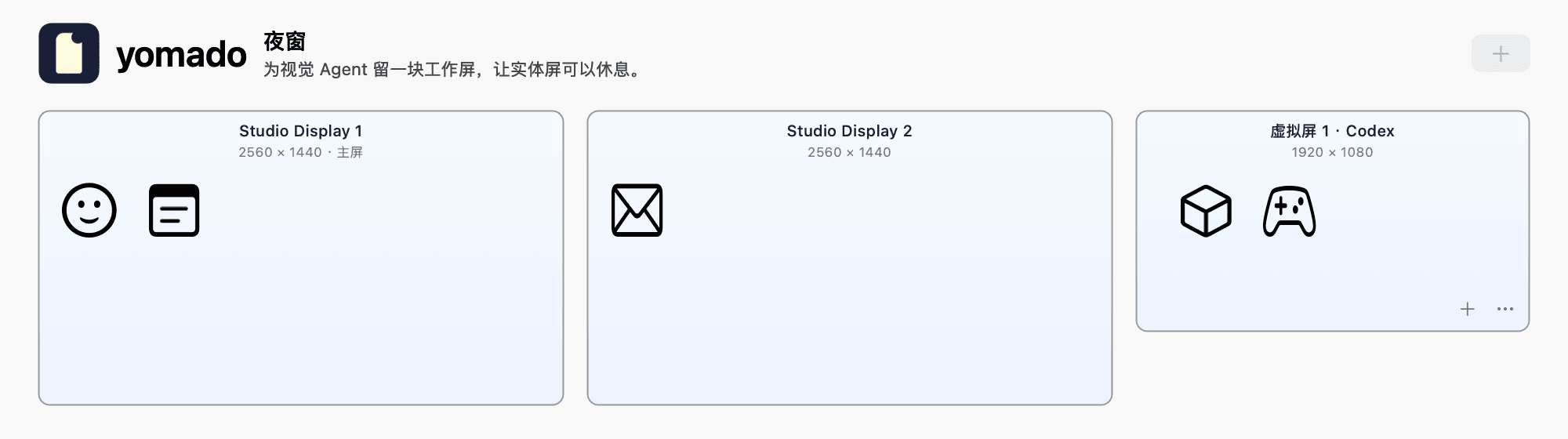
yomado is a native AppKit menu-bar app. Its panel lays out your physical and virtual screens in desktop order, to scale, with each app’s icon inside the screen it’s on. Hover for names and window counts; + adds or restarts a screen, … renames or closes one. While a virtual screen exists, yomado asks macOS to keep the system and desktop awake.
Tested on Apple Silicon
- Native Apple Silicon build.
- Calculator moved from a physical screen into a virtual screen named Codex, then into one named GrokBot, through the panel’s app menu.
- A fresh screenshot on GrokBot showed Calculator; typing 2 + 3 and Return gave 5.
- Sending Calculator back restored its original position and size.
- Closing a single virtual screen returned Calculator first, then removed the screen.
Not yet validated
- Agent work after monitors are physically switched off
- Power savings
- Long unattended runs
- Moving apps by dragging icons, and closing one screen while another stays open
Details and test notes are in the project README.
Download
yomado 0.3.1
An experimental build for Apple Silicon Macs. Free and open source under the MIT license.
Download for macOS- Version
- 0.3.1 (build 7) · pre-release · Oct 11, 2026
- Mac
- Apple Silicon (arm64). There’s no Intel build.
- macOS
- Built for macOS 14 and later; not every release has been tested.
- Signature
- Ad hoc signed. Not Developer ID signed or notarized.
- Interface
- Simplified Chinese
- SHA-256
44655ddb6fb6309a553f1be6109ba31bca671c39b5955ae02f7c72502f035b2c
First run
- Unzip it and open Yomado.app. It lives in the menu bar; closing the panel doesn’t quit it.
- The build isn’t notarized, so macOS may ask you to confirm. Follow your Mac’s usual security policy, or build it from source.
- Moving windows needs Accessibility permission. The lock icon in the panel opens the right page in System Settings; you switch it on yourself.
Check the file
shasum -a 256 Yomado-v0.3.1.zipFAQ
Questions, answered plainly.
Is yomado an agent?
No. It doesn’t look at your screen, make decisions or press keys. Codex or another visual agent does that with its own screenshot and input tools; yomado provides the display those apps run on.
Is it a remote desktop, or an MCP server?
Neither. It doesn’t stream your desktop or expose an API. If an app has a good MCP integration, use it — yomado is for the times an agent works through the app’s own interface.
Does the agent get its own keyboard and mouse?
No. Virtual screens are part of your current login session, so you and the agent share one keyboard, pointer and focus. Agree on who is using the desktop.
Can I switch my monitors off while the agent works?
That’s what yomado is designed for, but it hasn’t been validated: agent work after monitors are physically switched off, power savings and long unattended runs are all still open. yomado can’t switch a monitor off or measure its power draw.
Which Macs does it run on?
The Apple Silicon build is verified. macOS 14 is the deployment target, which doesn’t mean every macOS 14 or later release has been tested. There’s no Intel build.
Why does macOS warn me when I open it?
The app is ad hoc signed and hasn’t been notarized by Apple. Decide according to your Mac’s usual security policy, or build it yourself from the source.
What does it change on my Mac?
It creates and removes virtual displays and moves the windows you choose. It doesn’t touch passwords, the lock screen, screen savers or login settings, and its keep-awake request doesn’t unlock your Mac. It relies on private macOS APIs, so a system update can break it.
Is it open source?
Yes, under the MIT license. The app and its releases are at github.com/chekusu/yomado; this website is at github.com/chekusu/yomado.app.